How a Swiss business stopped downloading and filing invoices by hand, using one Deluge custom function between Zoho Books and Zoho WorkDrive.
Every accounts team does this task. An invoice is created in Zoho Books. Somebody downloads it as a PDF. Then they open Zoho WorkDrive, find the right month folder (or make a new one), and upload the file. Next invoice, same steps again.
It looks like a small task. But do this 50 or 100 times a month, and it turns into real hours of work. It also opens the door to mistakes – wrong folder, missed invoice, or a folder named differently by two different people.
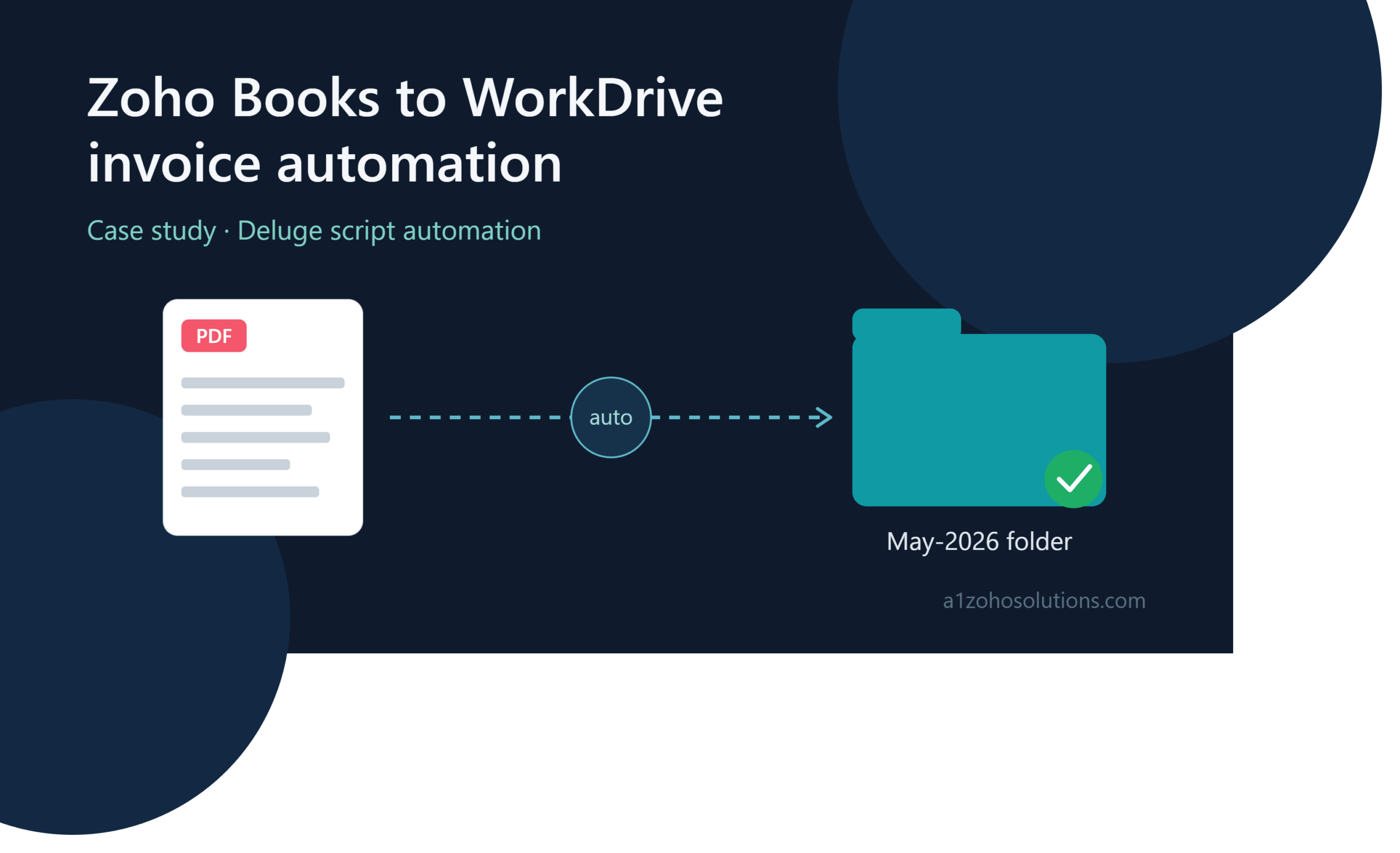
This case study is about a Swiss business that had this exact problem. We fixed it with one Deluge custom function that connects Zoho Books and Zoho WorkDrive. Now invoices file themselves, every time, without anyone touching them. This article covers what we built, how it works, and what the business got out of it. Client details are kept general to protect confidentiality.
About the Client
The client is a Swiss business that uses Zoho Books to manage billing for their customers. Their accounts operations run monthly, with invoices generated and sent out on a regular cycle. Like most growing businesses, their filing process had grown around manual habit rather than a fixed system.
They were already comfortable inside the Zoho ecosystem and did not want to add a new tool just to solve a filing problem. That single requirement shaped most of our solution design, which we will explain further below.
Business Challenges
Before automation, the operations team at this Swiss business faced four connected problems.
Manual download and upload was eating hours. Every invoice had to be opened in Zoho Books, downloaded as PDF, and then uploaded to WorkDrive by hand. At even 50 to 60 invoices a month, this added up to real hours of admin work every single month.
Folder names were not consistent. Without one fixed naming rule, different team members created folders in different formats – “May-26”, “May 2026”, “05-2026”. This made it hard to find an old invoice later, and it made audits slower and more painful than they needed to be.
Small human mistakes kept happening. Wrong folder. Duplicate upload. Missed invoice altogether. None of these were big issues on their own, but they added up, and most were only caught during an audit or a financial review – much later than ideal.
The process could not grow with the business. A manual system that works fine for 20 invoices a month starts to break down at 100, and becomes unmanageable at 500. The team knew this filing process would only get harder as the business grew, not easier.
None of this was about the team being careless. It is simply that repetitive, rule-based work like this is exactly the kind of task that automation is built for.
Requirements
Working with the client, we defined a short list of requirements for the automation.
- Fetch every finalised invoice as a PDF automatically, with no manual export step
- Organise invoices into folders by month, using one fixed naming format
- Check if a month’s folder already exists before creating a new one, so duplicates never happen
- Name every uploaded file using the Zoho Books invoice number, so files stay easy to search
- Run entirely inside Zoho, without adding a new third-party tool or paid subscription
- Log every run so any failure can be checked and fixed without digging through email or download folders
Our Analysis
When we looked at this problem, one thing stood out – this task follows the exact same logic every single time. There is no judgement call involved in filing an invoice. It just needs to happen the same way, every time, without fail. That makes it a strong candidate for a custom function rather than a manual checklist or a general-purpose no-code tool.
There is more than one way to connect Zoho Books and Zoho WorkDrive. Zoho Flow can do something similar without writing any code, and tools like Zapier can connect the two apps as well. For this client, we chose a Deluge custom function inside Zoho Books instead. Here is why: it runs natively inside the app the invoice is created in, needs no separate flow subscription or usage limits from a middleware tool, and gives full control over error handling, file naming, and the exact folder logic the client wanted. For a single-organisation setup like this one, that control mattered more than the visual, drag-and-drop convenience of a flow builder. A business with more complex, multi-app automation needs across many departments may find Zoho Flow a better starting point – it depends on the scale and the team’s comfort with scripting.
Solution
We built a Zoho WorkDrive integration using a custom Deluge function attached to a Zoho Books workflow rule. Deluge is Zoho’s own scripting language, built right into Zoho Books, Zoho Creator, and the rest of the Zoho suite.
In plain words, here is what the function does:
- When an invoice is created or marked as sent in Zoho Books, the automation starts
- It fetches that invoice as a PDF using the Zoho Books API
- It works out the current month’s folder name, such as “May-2026”
- It checks Zoho WorkDrive to see if that folder already exists
- If the folder is missing, it creates it automatically
- It uploads the invoice PDF into that folder, named using the invoice number
Nobody on the accounts team has to open WorkDrive at all. The function runs quietly in the background, every time an invoice is finalised.
Architecture Overview
The automation sits between two Zoho apps and moves in one direction – from Zoho Books to Zoho WorkDrive. At a high level, the flow works like this:
A Zoho Books workflow rule triggers the Deluge custom function the moment an invoice is finalised. The function then fetches the invoice as a PDF through the Zoho Books API, works out the current month’s folder name, and checks the WorkDrive Team Folder to see if that folder already exists. If it does not exist, the function creates it. Then it uploads the PDF into that folder, named using the invoice number, and logs whether the run succeeded or failed.
Each of these steps has its own error check built in. So if the invoice fetch fails, or the WorkDrive upload fails, the function stops cleanly and logs the reason, instead of leaving behind a broken folder or a half-uploaded file.
Features Implemented
Automatic PDF fetching. The function calls the Zoho Books API directly, so no one has to export a PDF by hand.
Folder check before create. The script always checks WorkDrive first, so it never creates two folders for the same month.
Monthly folders made on demand. Folders like “May-2026” and “Jun-2026” appear only when they are actually needed, not in advance.
Consistent file naming. Every invoice is saved using its Zoho Books invoice number, so anyone can search and find it in seconds.
Flexible trigger point. The workflow rule can fire when an invoice is created, when its status changes to “Sent”, when payment comes in, or on a set schedule – whatever fits the business.
No middleware needed. Everything runs inside Zoho using Deluge. No Zapier, no separate integration platform, nothing extra to pay for or maintain.
Built-in error logging. If something fails, the function logs it clearly and stops, instead of leaving a half-finished upload behind.
Integrations
This project connects two Zoho products directly:
- Zoho Books: the source of the invoice data and the trigger point for the whole automation
- Zoho WorkDrive: the destination, where invoices land in an organised folder structure
Both connections run through Zoho’s own OAuth-based connections inside the Deluge editor, not through hard-coded API keys. The same pattern can extend to other Zoho apps too – for example, filing Zoho Inventory delivery challans, Zoho Expense receipts, or Zoho CRM contract documents the same way, into the same kind of monthly or client-wise folder structure.
Automation Workflow – Step by Step
Step 1: Trigger: invoice is finalised. A Zoho Books workflow rule starts the function. It can trigger on invoice creation, on status change to “Sent”, on payment received, or on a scheduled nightly run, depending on what fits the business.
Step 2: Fetch the invoice PDF. The function calls the Zoho Books API and pulls the invoice as a PDF using the invoice ID. If the fetch fails, the error is logged and the function stops cleanly – no broken uploads.
Step 3: Work out the folder name. Using Zoho’s date functions, the script builds the current month’s folder name, such as “May-2026”.
Step 4: Check if the folder exists. The function checks the WorkDrive Team Folder and looks through the folders already inside it, checking for a name match.
Step 5: Create the folder if needed. If no match is found, a new folder is created with the correct name in the correct place. If it already exists, that same folder is reused – never duplicated.
Step 6: Upload the PDF. The invoice PDF is uploaded to the right folder, named with the Zoho Books invoice number, for example “Invoice-INV-00247.pdf”.
Step 7: Log the result. A success or failure message is saved to the log, so the team can check what happened and fix issues quickly if they come up.
Security Considerations
Invoice PDFs carry financial and customer data, so we kept a few security points in mind while building this.
- OAuth connections, not hard-coded keys. Both the Zoho Books and Zoho WorkDrive connections use Zoho’s own OAuth-based connection setup inside Deluge, so no API key sits exposed inside the script itself.
- Minimum required scope. The WorkDrive connection is scoped only to what the function actually needs – creating folders and uploading files – rather than full account access.
- Folder-level access stays as is. The automation does not change who can see the WorkDrive Team Folder. Existing team permissions in WorkDrive still apply after the automation runs.
- Clean failure, not partial failure. If any step fails – the API call, the folder check, or the upload – the function stops and logs the error rather than leaving a half-uploaded file sitting in WorkDrive.
- Data location depends on your Zoho data centre. Zoho hosts organisations in different regional data centres (such as the EU, US, or India), and this depends on where the account was originally signed up. This is worth checking directly in your own Zoho account if data residency matters for your compliance needs.
Business Benefits
Time given back to the team. The person who used to spend hours every month on downloads and uploads now spends that time on actual client work instead.
Fewer mistakes, more consistency. The script never picks the wrong folder and never forgets a step. Filing errors caused by manual handling are effectively removed from this part of the process.
Ready for audits, any time. When an accountant or auditor needs January’s invoices, they go to the “Jan-2026” folder in WorkDrive, and everything is already there – nothing scattered across email attachments or someone’s downloads folder.
Grows with the business. The same function handles 10 invoices a month or 1,000, at the same speed, without needing anyone to change the process as volume grows.
No extra software cost. Because it runs entirely inside Zoho using Deluge, there is no separate subscription or middleware tool to pay for or maintain.
Estimated Outcomes
These figures are estimates based on the invoice volume and manual process described by the client, not audited numbers, since exact before-and-after data was not tracked as a formal metric.
| Area | Before Automation | After Automation (Estimate) |
|---|---|---|
| Monthly filing time | Roughly 3–5 hours (at ~50-60 invoices/month, 3–5 min each) | Close to zero – runs automatically |
| Folder naming errors | Occasional, due to manual naming habits | Effectively eliminated by fixed script logic |
| Audit prep time | Slower, invoices scattered or inconsistently filed | Faster – invoices already sorted by month |
| Setup effort | – | A few hours of development and testing |
Future Enhancements
A few directions this automation could grow in, depending on what the business needs next:
- Extend the same logic to bills, expense receipts, and purchase orders, not just sales invoices
- Add a Slack or email alert if a function run fails, instead of relying on someone checking the log manually
- Organise folders by client name as well as by month, for businesses handling many customers
- Add a Zoho Analytics dashboard showing filing status and any failed runs at a glance
- Extend to multiple Zoho Books organisations, for businesses running more than one legal entity
Conclusion
Downloading invoices and filing them by hand every month feels like normal, unavoidable office work. It is not. It is repetitive, rule-based work – exactly the kind of task automation is built to handle.
By connecting Zoho Books and Zoho WorkDrive through one Deluge custom function, this Swiss business turned a monthly time-consuming task into something that simply runs by itself. Invoices are filed correctly and immediately, every time, without anyone touching them.
For any business already using Zoho Books and Zoho WorkDrive, this is one of the more straightforward automations to set up, and the time saved keeps adding up month after month. If your team is still filing invoices by hand, it may be worth writing down every task that repeats more than twice a month – chances are, more than one of them can be automated the same way.
Frequently Asked Questions
What is Zoho Books and WorkDrive integration?
It is a way of connecting Zoho Books (your invoicing and accounting app) with Zoho WorkDrive (your file storage app), so that documents like invoice PDFs move between the two automatically. This can be done through a Deluge custom function, or through a no-code tool like Zoho Flow, depending on how much control you need.
Why automate invoice filing instead of doing it manually?
Manual filing takes real time every month, and it does not scale as the business grows. It also depends on people remembering the correct folder name and format, which leads to inconsistent filing over time. Automation removes both problems – it runs the same way every time, and it does not get slower as invoice volume grows.
How does Zoho Books invoice automation with WorkDrive actually work?
A workflow rule in Zoho Books triggers a Deluge custom function when an invoice is created or sent. The function calls the Zoho Books API to fetch the invoice as a PDF, checks Zoho WorkDrive for the right folder, creates it if missing, and then uploads the file with a consistent name.
Which Zoho plan do I need for this kind of automation?
You need a Zoho Books plan that includes workflow rules and custom functions, and a Zoho WorkDrive plan with Team Folders and API access. Zoho changes its plan structure and feature limits from time to time, so it is best to check the current Zoho Books pricing page or confirm with a Zoho partner before you commit to a plan for this reason alone.
What is Deluge script used for in Zoho?
Deluge (Data Enriched Language for the Universal Grid Environment) is Zoho’s built-in scripting language. It lets you write small pieces of logic – like fetching a file, checking a condition, or calling another Zoho app’s API – and attach that logic to a workflow rule so it runs automatically.
Which businesses benefit most from invoice PDF automation?
Any business that generates invoices regularly and needs them stored in an organised, audit-ready way benefits from this. This applies especially to accounting and bookkeeping firms, agencies with recurring monthly billing, and any SME where invoice volume is growing month over month.
Can this same automation work for Google Drive or Dropbox instead of WorkDrive?
The core idea – trigger, fetch PDF, check folder, create if needed, upload – stays the same. The Deluge task names and connection setup would change, since Google Drive and Dropbox are not native Zoho products, but Deluge does support external API connections, so a similar function is possible with more setup work.
How much does it cost to set up this kind of automation?
Setup effort for a function like this is usually measured in hours, not days, once requirements are clear. Actual cost depends on how many trigger conditions, document types, and error-handling cases you want covered, so it is best discussed against your specific invoice process.